Overview
This article will show you how to update / modify mail server hostname or update email account password on Apple Mail. Please kindly refer to the guide below:


Oct 17, 2025
10 min read



This article will show you how to update / modify mail server hostname or update email account password on Apple Mail. Please kindly refer to the guide below:
1. Open your Apple Mail.

2. Open Email Settings from the menu.

3. Once you’ve opened the email account settings windows. Click on the Accounts icon on top of the window, second icon from the left.

4. Select the email account you want to update or modify from the left pane, then click the Server Settings tab that located on the right-upper pane.
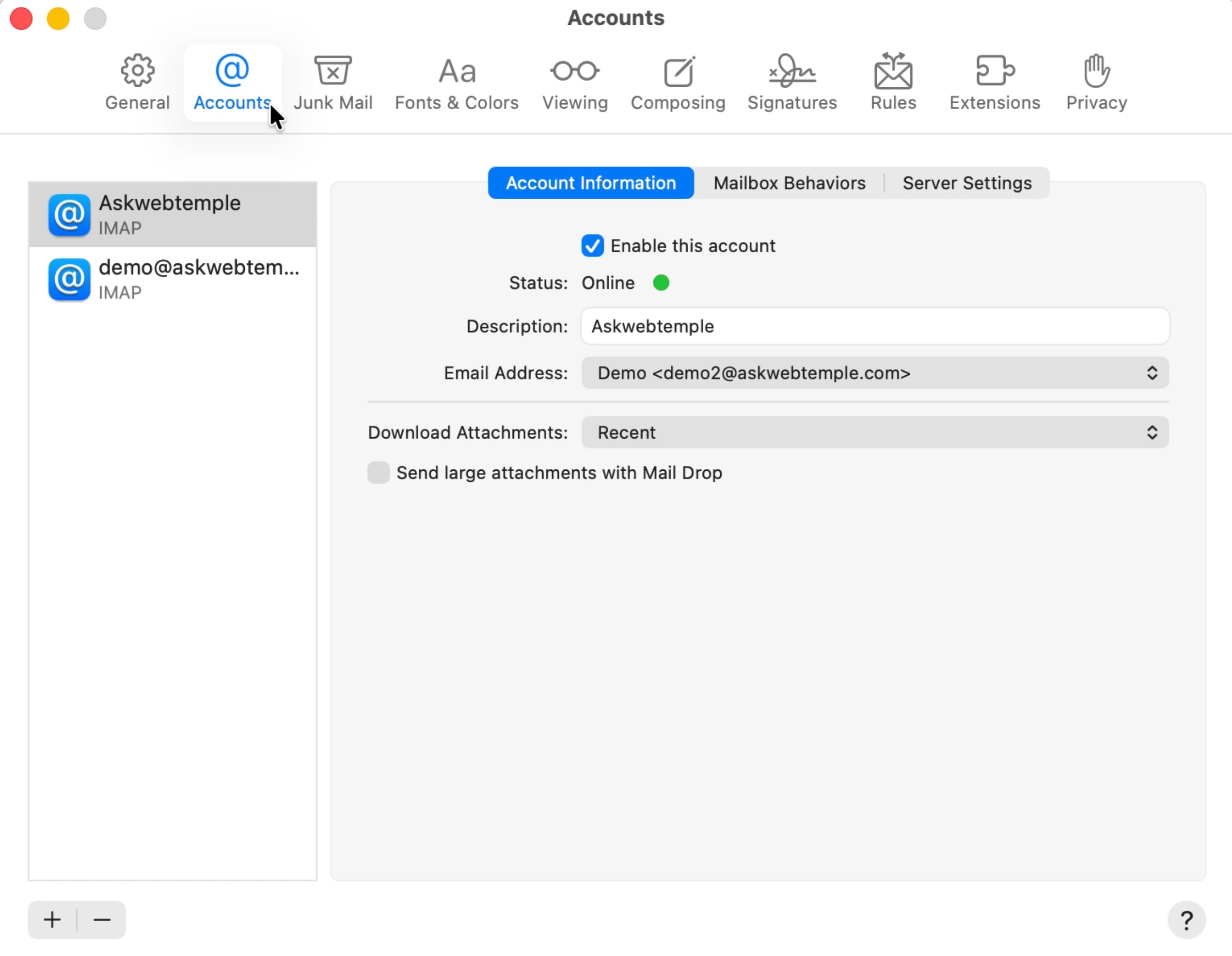
5. On the Server Settings tab, you can modify or update the following settings accordingly :
IMAP Account Type
POP Account Type

6. Once done, click Save to verify the new settings. Apple Mail will save and apply the latest configuration if the verification is successful.

7. You’ve completed it successfully.
Share On:


1. Click and run Outlook 2007. 2. On top of Outlook 2007 main window, click Tools menu, then Account Settings.
11 September 2012
To configure your email account on the iPad, please kindly follow the guide
26 January 2013
To configure your email account on the iPhone, please kindly follow the guide.
26 January 2013